Assessment access control
Instructors can use the assessment Access page to configure availability, deadlines, credit, time limits, passwords, PrairieTest access, and student-specific overrides.
Access control checks
PrairieLearn checks access at two levels:
- The course instance must be available to the student. The student must be enrolled in the course instance, and the course instance must be published or otherwise visible through its publishing controls.
- The assessment must grant the student access. Configure assessment access from the assessment Access page: Defaults apply to all students, and Overrides apply to selected student labels or specific students.
These two checks are both required. Publishing a course instance lets enrolled students see the course instance, but it does not by itself grant access to every assessment in it. Granting assessment access only works for students who can also access the course instance.
Legacy allowAccess
Existing assessments that still use allowAccess can continue to do so. New assessments should use the Access page and the accessControl format documented here. For details about the older format, see the legacy assessment access control documentation.
Open the Access page
From an assessment, open the Access tab. The page has two sections:
- Defaults: settings that apply to all students.
- Overrides: settings that apply only to selected student labels or specific students.
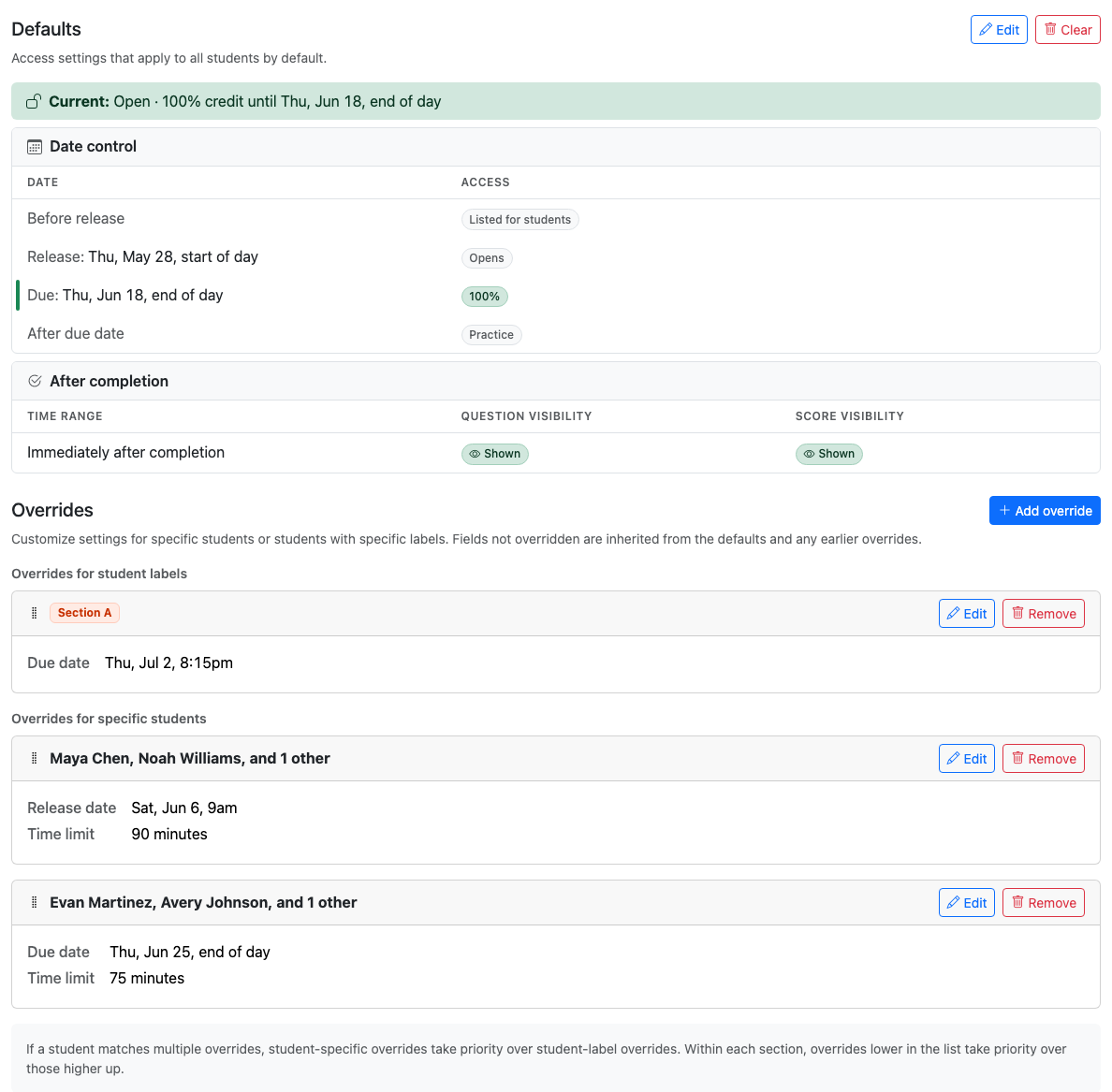
The Access page summarizes the active configuration and lists every override that applies to the assessment.
The summary card shows the current access state, the release/due timeline, credit after deadlines, and visibility settings. Click Edit on a card to open the detail panel, make changes, and then click Save to persist the changes.
Configure defaults
Click Edit in the Defaults section. Defaults are the baseline settings for every student who does not match a more specific override.
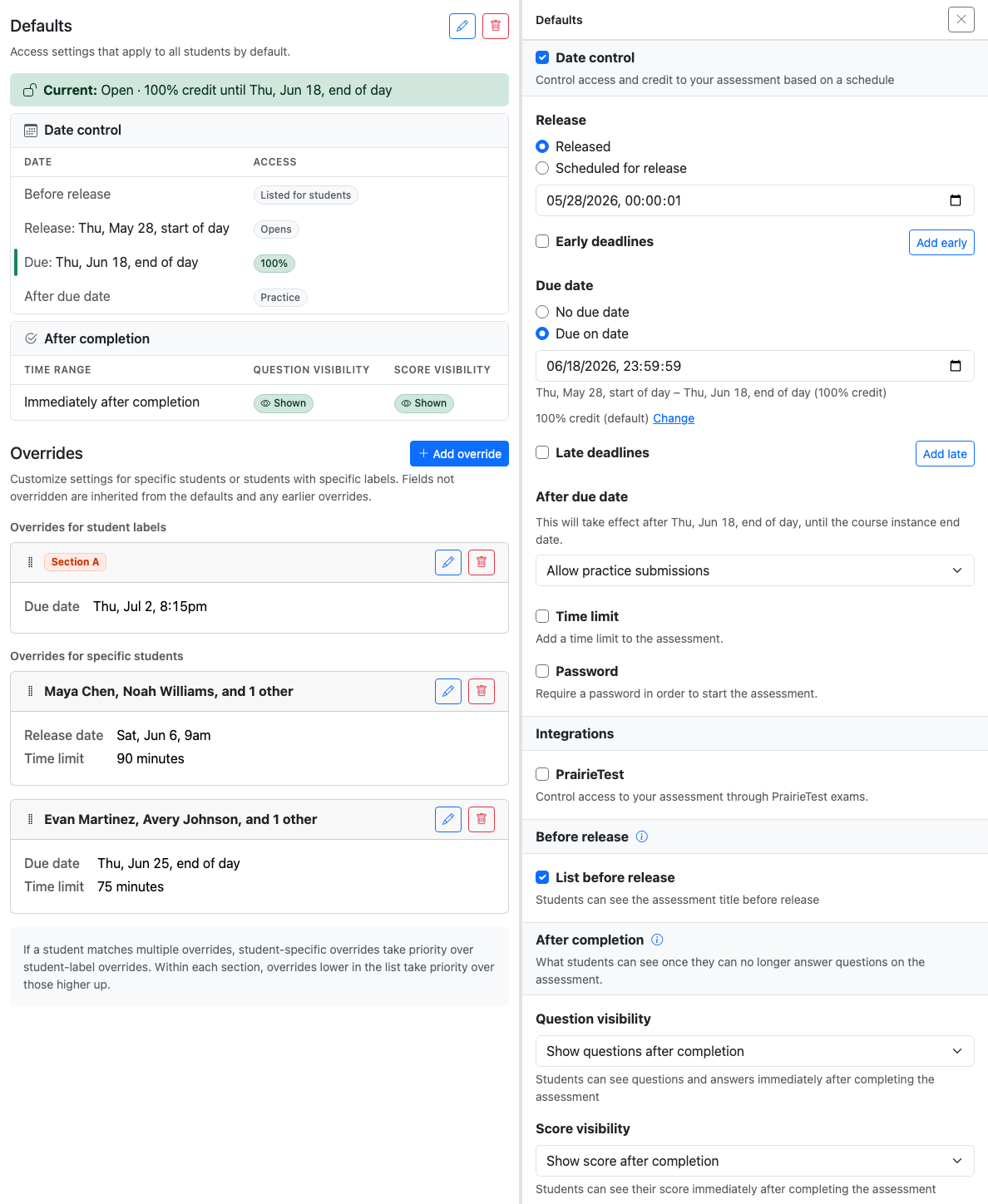
Editing the defaults opens a side panel with date control, PrairieTest, before-release, and after-completion settings.
Date control
Use Date control to configure when students can open the assessment, when submissions are accepted, and how much credit submissions receive over time.
Set a Release option:
- Released: students can access the assessment immediately, unless other access settings prevent it.
- Scheduled for release: students cannot open the assessment before the release date. If List before release is enabled, they can see the assessment title before release.
Set a Due date option:
- No due date: students can submit indefinitely after release.
- Due on date: students receive the due-date credit until that date.
By default, the due date is worth 100% credit. Click Change next to the due credit if you need a different on-time credit value. This is uncommon — most courses keep the on-time value at 100% and use an early deadline to reward early submissions or bonus points to let students exceed 100% by doing additional work.
Credit
Available credit is the maximum percentage score a student can earn during a particular access window. When the available credit is less than 100%, the percentage score is capped at that value. When the available credit is greater than 100%, students receive the bonus credit percentage once they reach full points; if maxBonusPoints is used, points above maxPoints are also scaled by the available credit percentage.
For example, on a 10-point assessment with 80% available credit, a student who earns 9/10 points receives an 80% score because the access window caps the percentage score. With 110% available credit, a student who earns 10/10 points receives 110%, while a student who earns 8/10 points still receives 80%.
Early and late deadlines
Use Early deadlines for bonus-credit windows before the due date, and Late deadlines for reduced-credit windows after the due date.
For each deadline, choose:
- a date and time;
- the integer credit percentage students receive until that deadline.
Deadlines form one chronological credit timeline. For example, an assessment might be worth 110% until an early deadline, 100% until the due date, 80% until a late deadline, and then 0% or practice credit after that.
Tip
With the default 100% due-date credit, early deadlines must offer more than 100% credit and late deadlines must offer less than 100%. More generally, early credits must exceed the due-date credit, and all credit after the due date must be below 100%.
After deadlines
Configure what happens after all deadlines have passed. The setting is labeled After due date when there are no late deadlines, After late deadline when there is one, and After late deadlines when there are several.
- No submissions allowed: students can view only what the assessment visibility settings allow, but cannot submit.
- Allow practice submissions: students can submit for feedback, but receive 0% credit.
- Allow submissions for partial credit: students can submit for the credit percentage you choose.
This setting controls submission permission only. If submissions are not allowed after the final deadline, the After completion visibility settings determine what students can review. If after-deadline submissions are allowed, After completion applies only after the student's assessment instance closes or its time limit expires.
Time limits
Enable Time limit to give each student a fixed amount of working time after they start the assessment.
Timed attempts can span early deadlines, the due date, and late deadlines that still allow submissions, so the credit a student earns can shift as those deadlines pass during the attempt. If an assessment has a due date, a late deadline, and a 60-minute time limit, a student who starts 1 minute before the due date works for the full 60 minutes: the first minute earns the on-time credit, and the remainder earns the late-deadline credit.
However, a timed attempt cannot continue past the point where submissions stop entirely. For example, if After due date is set to No submissions allowed with no late deadlines, a student who starts shortly before the due date receives only the remaining time until then, not the full configured time limit.
Passwords
Enable Password to require a password to start or continue working on the assessment. This is typically used for proctored exams. The password gates active, submittable work; students do not need to re-enter the password to review their work once submissions are no longer allowed (for example, in No submissions allowed mode after the last deadline).
Info
Time limits and passwords apply only when a student gains access through date control. They are not enforced inside an active PrairieTest reservation — PrairieTest enforces its own scheduled time limit and access controls, including any PrairieTest session password.
PrairieTest
Enable PrairieTest to let an active PrairieTest reservation grant access to the assessment. Add the PrairieTest exam UUID from the PrairieTest exam settings.
PrairieLearn shows an Exam badge in the navigation bar when a student is in Exam mode, which means the student has a checked-in PrairieTest reservation. While a matching reservation is active and the student is in Exam mode, PrairieTest controls the scheduled access window and time limit. Outside Exam mode, the top-level date control, before-release behavior, and after-completion visibility apply normally.
For each PrairieTest exam, configure what students see after they finish while the reservation is still active:
- Show questions and score: students can review questions and see their score.
- Show score only: students can see their score, but not the questions.
- Hide questions and score: students see neither questions nor score.
These per-exam settings do not support reveal dates. Use the top-level After completion settings for visibility after the active reservation ends.
You can also enable Read-only mode. During a read-only reservation, students can view previous submissions but cannot submit new answers or start the assessment if they have not already started. Questions and scores are always shown during read-only reservations, regardless of the per-exam visibility settings.
PrairieTest precedence
When a PrairieTest exam is associated with the assessment, PrairieLearn resolves access in this order:
- During an active matching reservation (Exam mode), PrairieTest grants access. Date-control scheduling, time limits, and passwords are not enforced — PrairieTest enforces its own scheduling, time limit, and access controls. For non-read-only reservations, the per-exam After completion visibility setting controls what students see after they finish, until the reservation ends.
- In Exam mode without an active matching reservation, date control is not used as a fallback access path. PrairieLearn denies access, omits the assessment from the student assessment list, and hides completed-work visibility such as gradebook scores.
- Outside Exam mode, the top-level date control rules apply normally when a date-control release exists. Top-level After completion visibility also takes over for completed instances once the reservation ends.
To restrict submission access to PrairieTest only, leave date control disabled. If students should also be unable to review questions or scores outside the reservation, keep top-level Question visibility and Score visibility hidden.
Before release
Enable List before release when students should see the assessment title before they can open it. With date control, this is the period before the release date. With PrairieTest only (no date control), this controls whether students can see the assessment title outside Exam mode even though they cannot open it. In Exam mode, only assessments with an active matching reservation are listed or accessible. If neither date control nor PrairieTest is enabled, the assessment is listed but students cannot start it.
Disable it when the assessment should be completely hidden until release.
After completion
Use Question visibility and Score visibility to decide what students can see after the assessment is complete.
These settings apply once submissions are no longer allowed: after the final deadline, when a timed assessment closes, when an Exam assessment auto-closes after inactivity, or when an instructor closes it. If after-deadline submissions are allowed, After completion applies only after the student's assessment instance closes or its time limit expires.
Question visibility options:
- Hide questions permanently: questions are never visible after completion.
- Show questions after completion: students can review questions and answers immediately after completing the assessment.
- Show questions after date: questions are hidden after completion and become visible on the chosen date.
- Show questions between dates: questions are visible only between the chosen dates.
Score visibility options:
- Hide score permanently: the score is never visible after completion.
- Show score after completion: students can see their score immediately.
- Show score after date: the score is hidden after completion and becomes visible on the chosen date.
For PrairieTest exams, top-level after-completion settings apply outside an active reservation. Use the per-exam PrairieTest visibility setting to control what students see while their reservation is still active.
Visibility dates are only valid when the corresponding item is hidden first. Hiding the score also requires hiding questions, because PrairieLearn does not support showing question submissions while hiding their resulting score.
Add an override
Overrides customize access for selected students while inheriting anything they do not explicitly change from the defaults.
Click Add override in the Overrides section.
Choose who the override applies to:
- Specific students: select enrolled students. This is the usual choice for one-off accommodations and makeup windows.
- Students by label: select one or more student labels, such as "Section A" or "Extra time". The override applies to students with any of the selected labels (not all of them).
Student labels are managed on the course instance Students page. They are the recommended way to handle repeated accommodations, sections, or cohort-specific deadlines.
After choosing the target, click Override next to each field you want to customize. Fields that you do not override continue to inherit from the defaults.
Common override uses include:
- extending the due date for a student label;
- adding extra time for students with an accommodation label;
- giving one student a password or different access window;
- hiding or revealing completed exam content differently for one group.
Edit an existing override
Existing overrides appear as cards under Overrides for student labels or Overrides for specific students. Click Edit to change the target or overridden fields.
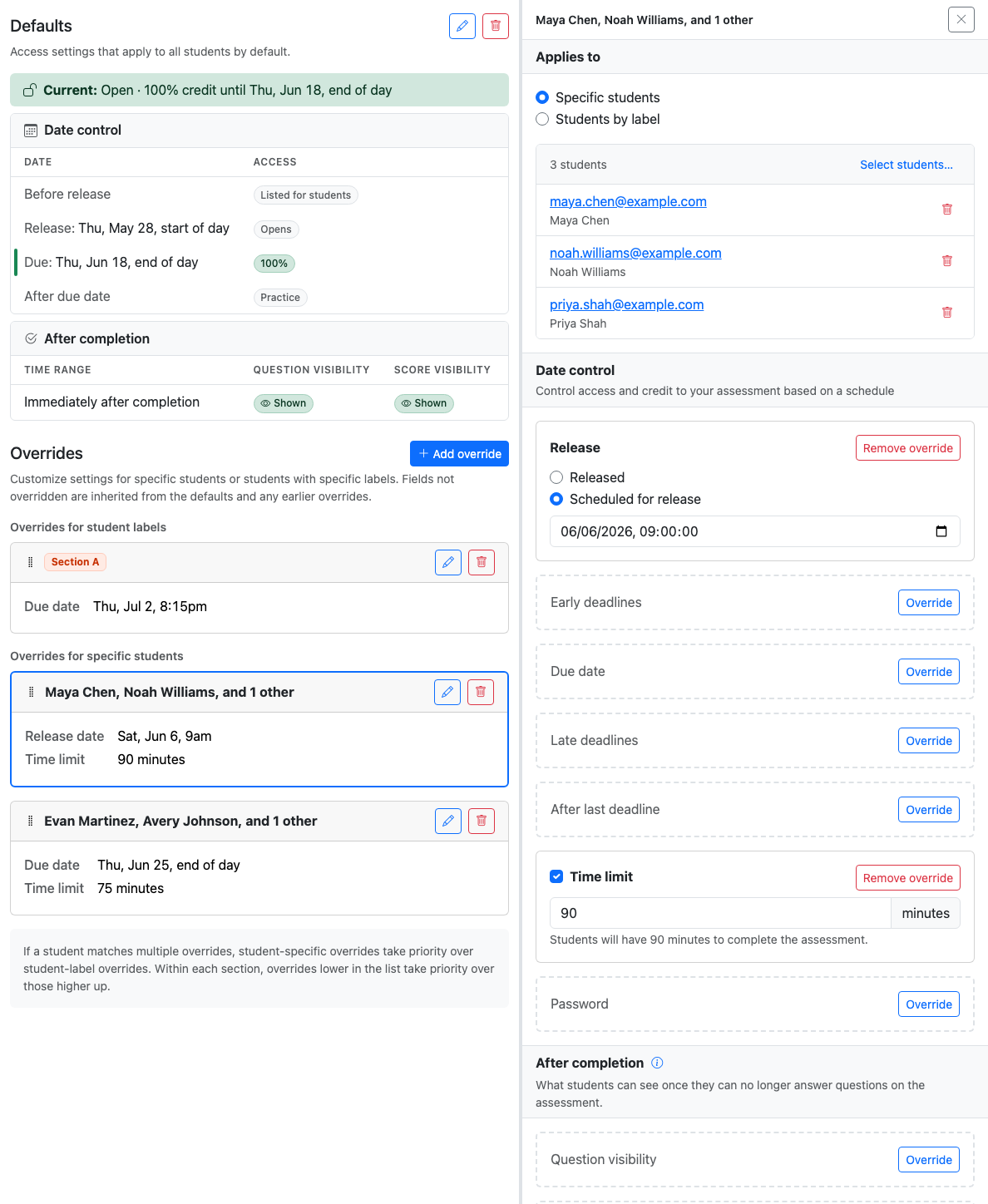
Each override starts with every field inherited from the defaults; click Override next to a field to set a different value just for the targeted students.
When an override field is active, the detail panel shows Remove override for that field. Removing the override does not clear the default value; it makes the rule inherit that field again.
Override priority
Student-specific overrides take priority over student-label overrides. Within each section, overrides lower in the list take priority over those higher in the list; use the drag handle to reorder overrides when priority matters.
For example, suppose a student has both the "Section A" and "Extended time" labels:
- The Section A override sets a later due date (Feb 20).
- The Extended time override sets a longer time limit (90 minutes) and an earlier release date (Jan 14).
The student inherits both overrides on top of the defaults: due date Feb 20, time limit 90 minutes, release date Jan 14. If both overrides set the same field — say, both set the due date — the override lower in the list wins.
Save changes
The page tracks unsaved changes at the bottom of the screen. Click Save to apply your access-control changes.
Click Cancel to discard unsaved UI changes.
Click Clear on the Defaults card to remove the default access-control configuration. Click Remove on an override card to delete the entire override.
Migrating from legacy access control
Legacy access control uses allowAccess rules. Modern access control uses accessControl rules. See the legacy access control documentation for details about the older format.
Migration from legacy allowAccess can be done in two ways:
- On an assessment's Access tab, click Migrate to modern format. PrairieLearn shows the migrated changes and any warnings before you confirm.
- When copying a course instance, PrairieLearn migrates compatible assessment-level rules and reports any caveats before you confirm the copy.
Note
UID-based rules from the legacy system do not have a direct JSON equivalent in modern access control. After migration, use the Access page to configure overrides for student labels or specific enrolled students.
For JSON-level before-and-after examples, see Legacy migration examples in the advanced JSON reference.
Common scenarios
Simple homework with a due date
Students can start and submit the homework from Jan 15 to Feb 15 for 100% credit. After Feb 15, submissions are not allowed. The After completion settings apply; by default, students can see their score but not the questions.
In the UI:
- Edit Defaults.
- Enable Date control.
- Set Release to Scheduled for release and enter Jan 15.
- Set Due date to Due on date and enter Feb 15.
- Leave due-date credit at the default 100%.
- Leave After due date set to No submissions allowed.
JSON
{
  "accessControl": [
    {
      "dateControl": {
        "release": { "date": "2025-01-15T00:00:01" },
        "due": { "date": "2025-02-15T23:59:59" }
      }
    }
  ]
}
Always-open practice assessment
Students can access a practice assessment indefinitely after release with full credit.
In the UI:
- Edit Defaults.
- Enable Date control.
- Set Release to Released (or Scheduled for release with a release date).
- Set Due date to No due date.
JSON
{
  "accessControl": [
    {
      "dateControl": {
        "release": { "date": "2025-01-15T00:00:01" },
        "due": { "date": null }
      }
    }
  ]
}
With due.date: null, due.credit (default 100%) applies indefinitely after release.
Homework with early bonus and late penalty
| Period | Credit |
|---|---|
| Before Jan 15 | Not open |
| Jan 15-Feb 1 | 110% |
| Feb 1-Feb 15 | 100% |
| Feb 15-Feb 22 | 80% |
| Feb 22-Mar 1 | 50% |
| After Mar 1 | 0%, with submissions allowed for feedback |
After Mar 1, submissions remain open indefinitely for feedback at 0% credit. The After completion settings apply only after the student's assessment instance closes or its time limit expires.
In the UI:
- Edit Defaults.
- Enable Date control and set the release date to Jan 15.
- Add an Early deadline on Feb 1 with 110% credit.
- Set the Due date to Feb 15 and leave credit at 100%.
- Add Late deadlines on Feb 22 with 80% credit and Mar 1 with 50% credit.
- Set After late deadlines to Allow practice submissions.
JSON
{
  "accessControl": [
    {
      "dateControl": {
        "release": { "date": "2025-01-15T00:00:01" },
        "due": { "date": "2025-02-15T23:59:59" },
        "earlyDeadlines": [{ "date": "2025-02-01T23:59:59", "credit": 110 }],
        "lateDeadlines": [
          { "date": "2025-02-22T23:59:59", "credit": 80 },
          { "date": "2025-03-01T23:59:59", "credit": 50 }
        ],
        "afterLastDeadline": {
          "allowSubmissions": true,
          "credit": 0
        }
      }
    }
  ]
}
Timed exam with password
Students have a 90-minute time limit within the two-hour exam window. A password is required to start. Submissions stop after the exam window. Once the exam is complete, questions and scores are hidden, with scores revealed on Mar 12.
In the UI:
- Edit Defaults.
- Enable Date control.
- Set the release date to Mar 10 at 9:00am and the due date to Mar 10 at 11:00am.
- Enable Time limit and enter 90 minutes.
- Enable Password and enter the password.
- Under After completion, set Question visibility to Hide questions permanently.
- Set Score visibility to Show score after date and enter Mar 12.
JSON
{
  "accessControl": [
    {
      "dateControl": {
        "release": { "date": "2025-03-10T09:00:00" },
        "due": { "date": "2025-03-10T11:00:00" },
        "durationMinutes": 90,
        "password": "exam2025"
      },
      "afterComplete": {
        "questions": { "hidden": true },
        "score": { "hidden": true, "visibleFromDate": "2025-03-12T00:00:01" }
      }
    }
  ]
}
PrairieTest exam
Students access the assessment through an active PrairieTest reservation; time limits and scheduling are managed by PrairieTest.
In the UI:
- Edit Defaults.
- Enable PrairieTest under Integrations.
- Enter the PrairieTest exam UUID.
- For After completion, choose what students can see after they finish, while their reservation is still active.
- Use the top-level After completion settings for what students can see after the reservation ends.
- Do not configure an ordinary date-control access window unless students should also be able to access the assessment outside PrairieTest.
JSON
{
  "accessControl": [
    {
      "integrations": {
        "prairieTest": {
          "exams": [
            {
              "examUuid": "5719ebfe-ad20-42b1-b0dc-c47f0f714871"
            }
          ]
        }
      }
    }
  ]
}
Extended due date for a student label
Students with the "Extended time" label get a later due date and more time. All other settings inherit from the defaults.
In the UI:
- Create or confirm a student label such as "Extended time" on the course instance Students page.
- On the assessment Access page, click Add override.
- Choose Students by label and select "Extended time".
- Click Override next to Due date and set the later due date.
- Click Override next to Time limit and enter the longer duration.
- Leave every other field inherited.
JSON
{
  "accessControl": [
    {
      "dateControl": {
        "release": { "date": "2025-01-15T00:00:01" },
        "due": { "date": "2025-02-15T23:59:59" },
        "durationMinutes": 60
      }
    },
    {
      "uuid": "22222222-2222-4222-8222-222222222222",
      "labels": ["Extended time"],
      "dateControl": {
        "due": { "date": "2025-02-22T23:59:59" },
        "durationMinutes": 90
      }
    }
  ]
}
Extended access for specific students
Use student-specific overrides for one-off accommodations or makeup windows.
In the UI:
- Click Add override.
- Choose Specific students.
- Click Select students and choose the enrolled students.
- Click Override next to only the fields that should differ, such as Release, Due date, or Time limit.
- Save the changes.
Limitations
Modern access control models credit as a single contiguous submission timeline from the release date through deadlines to the point where submissions stop. It cannot represent non-contiguous submission ranges where credit is available, then unavailable, then available again.
For example, a legacy setup that accepts 100% credit submissions from Jan 15 to Feb 15, stops accepting submissions, and then reopens for 100% credit submissions from Mar 1 to Mar 15 cannot be represented as one modern credit timeline.
Assessments with non-contiguous credit ranges are flagged as incompatible during migration. You can clear those rules and reconfigure access manually, or keep the legacy format.
Limits
Modern access control limits unusually large configurations so that access settings remain reviewable and do not accept unbounded input. Most assessments should be well below these limits; use student labels for repeated accommodations, sections, or cohorts instead of selecting large groups of students individually.
| Setting | Limit |
|---|---|
| Student-label overrides | 100 overrides per assessment |
| Student-specific overrides | 100 overrides per assessment |
| Students in one student-specific override | 100 students |
| Student labels in one student-label override | 100 labels |
| Early and late deadlines | 10 early and 10 late deadlines per rule |
| Linked PrairieTest exams | 10 exams per assessment |
| Time limits | 525,600 minutes (365 days) |
| Passwords | 128 characters |
Staff access
Course staff with a course role of Previewer or above, or a course instance role of Student Data Viewer or above, always receive full access to all assessments regardless of access control rules. They see 100% credit with a "(Staff override)" indicator.
Advanced JSON configuration
Most instructors should use the Access page. The JSON format is useful when you need to script access-control changes, review diffs, or generate assessments programmatically.
The accessControl field is an array in infoAssessment.json:
{
  "accessControl": [
    {
      "beforeRelease": { "listed": true },
      "dateControl": {
        "release": { "date": "2026-04-10T00:00:01" },
        "due": { "date": "2026-05-01T23:59:59" },
        "afterLastDeadline": { "allowSubmissions": true, "credit": 0 }
      },
      "afterComplete": { "questions": { "hidden": false } }
    },
    {
      "uuid": "22222222-2222-4222-8222-222222222222",
      "labels": ["Section A"],
      "dateControl": {
        "due": { "date": "2026-05-28T20:15:00" }
      }
    },
    {
      "uuid": "33333333-3333-4333-8333-333333333333",
      "dateControl": {
        "durationMinutes": 120
      }
    }
  ]
}
The first element is the defaults rule and must not have a uuid. Every element after the first is an override and must have a uuid. Overrides with labels target student labels; trailing overrides without labels store student-specific rule bodies, while the selected students stay in PrairieLearn rather than in course content. Use labels: [] for a student-label override that intentionally targets no labels.
Full JSON skeleton
{
  "accessControl": [
    {
      "beforeRelease": { "listed": true },
      "dateControl": {
        "release": { "date": "2025-01-15T00:00:01" },
        "due": { "date": "2025-02-15T23:59:59", "credit": 100 },
        "earlyDeadlines": [{ "date": "2025-02-01T23:59:59", "credit": 110 }],
        "lateDeadlines": [{ "date": "2025-02-22T23:59:59", "credit": 80 }],
        "afterLastDeadline": {
          "allowSubmissions": true,
          "credit": 0
        },
        "durationMinutes": 60,
        "password": "mysecret"
      },
      "integrations": {
        "prairieTest": {
          "exams": [
            {
              "examUuid": "5719ebfe-ad20-42b1-b0dc-c47f0f714871",
              "readOnly": false,
              "afterComplete": {
                "questions": { "hidden": true },
                "score": { "hidden": true }
              }
            }
          ]
        }
      },
      "afterComplete": {
        "questions": {
          "hidden": true,
          "visibleFromDate": "2025-03-01T00:00:01",
          "visibleUntilDate": "2025-06-01T00:00:01"
        },
        "score": {
          "hidden": true,
          "visibleFromDate": "2025-03-01T00:00:01"
        }
      }
    },
    {
      "uuid": "22222222-2222-4222-8222-222222222222",
      "labels": ["Extended time"],
      "dateControl": {
        "due": { "date": "2025-02-22T23:59:59" },
        "durationMinutes": 90
      }
    },
    {
      "uuid": "33333333-3333-4333-8333-333333333333",
      "dateControl": {
        "release": { "date": "2025-02-20T00:00:01" },
        "due": { "date": "2025-02-28T23:59:59" }
      }
    }
  ]
}
dateControl
| Field | Type | Description |
|---|---|---|
release |
object | Object with date (ISO datetime). The assessment is not open to students before this date. |
due |
object | Object with date (ISO datetime, or null for no due date) and optional integer credit (0-200, default 100). |
earlyDeadlines |
array | Array of {date, credit} objects. Deadlines before the due date that offer bonus credit. |
lateDeadlines |
array | Array of {date, credit} objects. Deadlines after the due date that offer reduced credit. |
afterLastDeadline |
object | Controls whether submissions are allowed after all deadlines have passed, and how much credit they receive. Omit on the default rule to disallow submissions; omit on overrides to inherit. |
durationMinutes |
integer | Time limit in minutes. |
password |
string | Password required to start the assessment. |
due.credit defaults to 100. Deadline credits may use any integer percentage from 0 to 200, but the resolved sequence of early deadlines, due date, late deadlines, and afterLastDeadline.credit must strictly decrease over time. Early deadlines are not allowed when due credit is below 100%. Late deadlines and afterLastDeadline.credit must be below 100%.
When due.date is null, the due credit applies indefinitely after release.
afterLastDeadline
| Field | Type | Default | Description |
|---|---|---|---|
allowSubmissions |
boolean | false |
Whether students can still submit answers after all deadlines. |
credit |
integer | - | Required when allowSubmissions is true; credit percentage after the last deadline, from 0 to 99. |
If allowSubmissions is true, credit is required and must be below 100% and below the preceding deadline's credit. Use "credit": 0 for practice submissions.
If afterLastDeadline is omitted on the default rule or set to { "allowSubmissions": false }, students cannot submit after the final deadline. They can still review whatever the afterComplete settings make visible. On overrides, omit afterLastDeadline to inherit from the default rule, or set { "allowSubmissions": false } to explicitly disable submissions.
If allowSubmissions is true, the afterComplete visibility settings apply only after the student's assessment instance closes or its time limit expires.
beforeRelease
| Field | Type | Default | Description |
|---|---|---|---|
listed |
boolean | false |
Whether students can see the assessment title before release. They still cannot open the assessment. |
beforeRelease can only be configured on the defaults rule.
afterComplete
By default, questions are hidden and scores are shown after completion.
| Field | Type | Default | Description |
|---|---|---|---|
questions.hidden |
boolean | true |
Whether questions are hidden after completion. |
questions.visibleFromDate |
string | Date to reveal questions after completion. | |
questions.visibleUntilDate |
string | Date to hide questions again after revealing them. | |
score.hidden |
boolean | false |
Whether the score is hidden after completion. |
score.visibleFromDate |
string | Date to reveal the score after completion. |
The visibility fields follow a toggle pattern. For example, if questions.hidden is true, questions are hidden after completion. At questions.visibleFromDate, they become visible. At questions.visibleUntilDate, they are hidden again.
PrairieTest JSON
| Field | Type | Description |
|---|---|---|
integrations.prairieTest.exams |
array | Array of exam objects. |
integrations.prairieTest.exams[].examUuid |
string | UUID of the associated PrairieTest exam. |
integrations.prairieTest.exams[].readOnly |
boolean | Whether the exam is read-only for students. |
integrations.prairieTest.exams[].afterComplete.questions.hidden |
boolean | If true, questions are hidden after the student finishes while the reservation is still active. |
integrations.prairieTest.exams[].afterComplete.score.hidden |
boolean | If true, the score is hidden after the student finishes while the reservation is still active. |
readOnly: true cannot be combined with exam-level afterComplete settings that hide questions or scores. Also, afterComplete.score.hidden: true requires afterComplete.questions.hidden: true. Exam-level afterComplete only supports the three UI modes above; it does not support visibleFromDate or visibleUntilDate.
JSON override inheritance
JSON overrides store the fields they change; omitted fields inherit through the same priority order used by the UI:
- Start with the defaults rule.
- Apply matching overrides with
labelsin the order they appear in theaccessControlarray. - Apply matching student-specific overrides, which have
uuidand nolabels.
Later matching student-label overrides replace fields from earlier matching student-label overrides. Student-specific overrides take priority over student-label overrides. Student-specific rule bodies may appear in JSON, but the selected student mappings remain stored in PrairieLearn and are not listed in infoAssessment.json.
| Field | Defaults to override merge | Override to override cascade |
|---|---|---|
dateControl.* sub-fields |
Override replaces individual sub-fields; omitted sub-fields inherit | Later override replaces; omitted fields kept from earlier |
afterComplete.questions |
Replaced as a whole object when set | Replaced as a whole object; otherwise inherited |
afterComplete.score |
Replaced as a whole object when set | Replaced as a whole object; otherwise inherited |
beforeRelease |
Cannot be overridden | Not applicable |
integrations.prairieTest.* |
Cannot be overridden | Not applicable |
There are a few important details:
dueis one atomic setting. Overriding the due date also overrides the due-date credit choice — they cannot be cascaded independently.earlyDeadlinesandlateDeadlinesare each replaced as a whole array. Setting either to[]in an override clears the inherited deadlines for that override's students.afterLastDeadlineis inherited when omitted from an override. Set{ "allowSubmissions": false }to explicitly disable after-deadline submissions for that override.durationMinutes: nullandpassword: nullin an override clear the inherited time limit or password. Omitting the field entirely keeps the inherited value.afterComplete.questionsandafterComplete.scoreinherit independently of each other, but each is replaced as a whole object: an override that setsafterComplete.questionswithout dates does not retain the default'svisibleFromDate/visibleUntilDate.beforeRelease.listedand PrairieTest integrations (integrations.prairieTest) are defaults-only. Overrides cannot enable, disable, or change them.
Legacy migration examples
Single deadline
{
  "allowAccess": [
    {
      "startDate": "2025-01-15T00:00:01",
      "endDate": "2025-02-15T23:59:59",
      "credit": 100
    }
  ]
}
{
  "accessControl": [
    {
      "dateControl": {
        "release": { "date": "2025-01-15T00:00:01" },
        "due": { "date": "2025-02-15T23:59:59" }
      }
    }
  ]
}
Declining credit
{
  "allowAccess": [
    {
      "startDate": "2025-01-15T00:00:01",
      "endDate": "2025-02-01T23:59:59",
      "credit": 110
    },
    {
      "startDate": "2025-01-15T00:00:01",
      "endDate": "2025-02-15T23:59:59",
      "credit": 100
    },
    {
      "startDate": "2025-01-15T00:00:01",
      "endDate": "2025-02-22T23:59:59",
      "credit": 80
    }
  ]
}
{
  "accessControl": [
    {
      "dateControl": {
        "release": { "date": "2025-01-15T00:00:01" },
        "due": { "date": "2025-02-15T23:59:59" },
        "earlyDeadlines": [{ "date": "2025-02-01T23:59:59", "credit": 110 }],
        "lateDeadlines": [{ "date": "2025-02-22T23:59:59", "credit": 80 }]
      }
    }
  ]
}
Timed exam
{
  "allowAccess": [
    {
      "startDate": "2025-03-10T09:00:00",
      "endDate": "2025-03-10T11:00:00",
      "timeLimitMin": 90,
      "credit": 100
    }
  ]
}
{
  "accessControl": [
    {
      "dateControl": {
        "release": { "date": "2025-03-10T09:00:00" },
        "due": { "date": "2025-03-10T11:00:00" },
        "durationMinutes": 90
      }
    }
  ]
}
Password-gated exam
{
  "allowAccess": [
    {
      "startDate": "2025-03-10T09:00:00",
      "endDate": "2025-03-10T11:00:00",
      "password": "mysecret",
      "credit": 100
    }
  ]
}
{
  "accessControl": [
    {
      "dateControl": {
        "release": { "date": "2025-03-10T09:00:00" },
        "due": { "date": "2025-03-10T11:00:00" },
        "password": "mysecret"
      }
    }
  ]
}